Workflows
Workflows Page
The Workflows page displays all workflows created in the system and allows you to manage them easily. This page enables you to create, edit, and manage your automated workflows visually and intuitively.
The Workflows page includes two tabs:
- My Workflows: Displays workflows created by you.
- External Workflows: Displays external Docker-based workflows connected to your account.
My Workflows
Status Filter: Use the status filter to control which workflows are displayed:
- All: Displays all workflows.
- Active: Displays only active workflows.
- Inactive: Displays only inactive workflows.
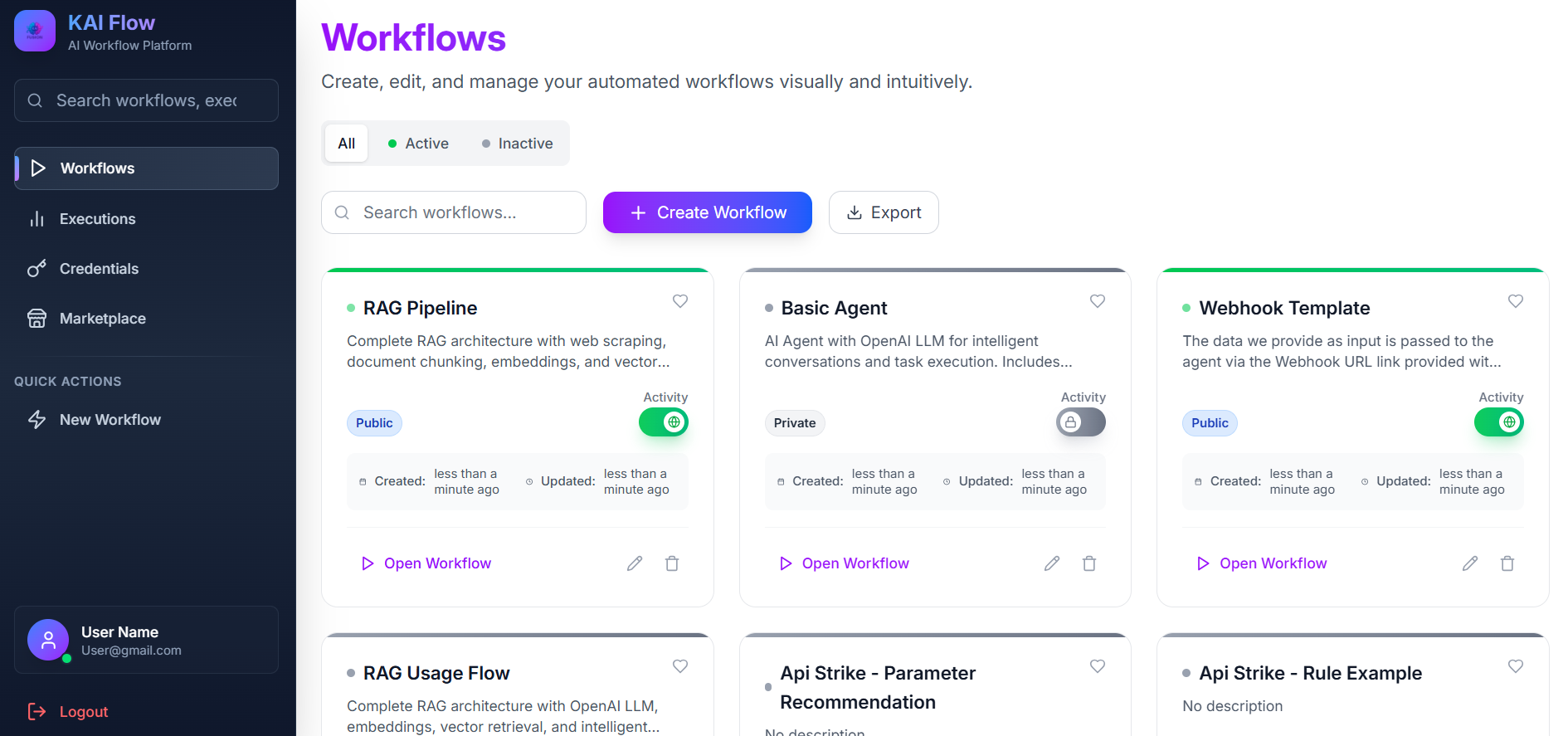
You can quickly find or create workflows using the controls at the top of the page:
- Search Bar: Filters workflows by name or description.
- Create Workflow: Starts the workflow creation process.
- Pinned Workflows: They are displayed at the top of the page for quick access.
Workflow Cards
Each workflow is displayed as a card containing the following information and actions:
- Status Bar indicating whether the workflow is active or inactive.
- Status Dot with an animated pulse for active workflows.
- Workflow Name, which opens the workflow in the Canvas view.
- Description providing a brief overview of the workflow.
- Pin Button to pin or unpin the workflow.
- Visibility Badge showing whether the workflow is Public or Private.
- Status Badge indicating Active or Inactive.
- Toggle Switch to enable or disable the workflow.
- Metadata showing creation and last update timestamps.
Each workflow card also includes the following action buttons:
- Open Workflow: Opens the workflow in Canvas.
- Edit: Allows you to edit the workflow name and description.
- Delete: Permanently deletes the workflow.
External Workflows Tab
The External Workflows tab is used to manage Docker-based external workflows.
From this tab, you can:
- Add a new external workflow using the Add External Workflow button.
-
View external workflow cards that display:
- Connection status (online or offline)
- Workflow name and description
- External workflow URL
- Capability badges such as Chat and Memory
Available actions for external workflows include:
- Chat: Start a conversation with the external workflow.
- View: View workflow details.
- Remove: Unregister the external workflow.