KAI Assistant
KAI Assistant builds workflows from a plain-language description. Instead of dragging nodes onto the canvas one by one, you describe what you want and the assistant generates the flow — nodes, connections, and parameters included.
It works in two modes: it can build a new workflow from scratch, or edit the workflow currently open on your canvas.
Opening KAI Assistant
KAI Assistant is part of the chat panel on the workflow canvas.
- Open a workflow, then click Chat in the lower-right corner.
- In the panel header, click the KAI Assistant button (sparkle icon).
Click the same button again to return to normal chat with your workflow.
Settings
Before your first request, open the settings panel in the header and select a credential.
- Select a Credential — the LLM credential the assistant uses to generate your workflow. Any OpenAI or OpenAI-compatible credential works.
- Show Advanced Settings — optional fields for model name, base URL, SSL verification, and extra body parameters. Leave these at their defaults unless you are using a self-hosted or non-standard provider.
The default model is gpt-4o.
Building a Workflow
Type what you want to build and press Send. Describe the outcome rather than the individual nodes — the assistant decides which nodes are needed.
Examples:
Create a conversational AI agentBuild a webhook trigger that saves dataCreate a workflow that scrapes a web page, splits it into chunks, and stores them in a vector database
The panel also offers two shortcuts, Conversational Agent and Webhook Data Saver, which fill in a starting request for you.
While the assistant works, the panel shows Building workflow.... When it finishes, the generated nodes appear on the canvas, already connected.
Generation happens in two stages: the assistant first plans the structure of the flow, then fills in each node's parameters and validates the result before placing it on the canvas.
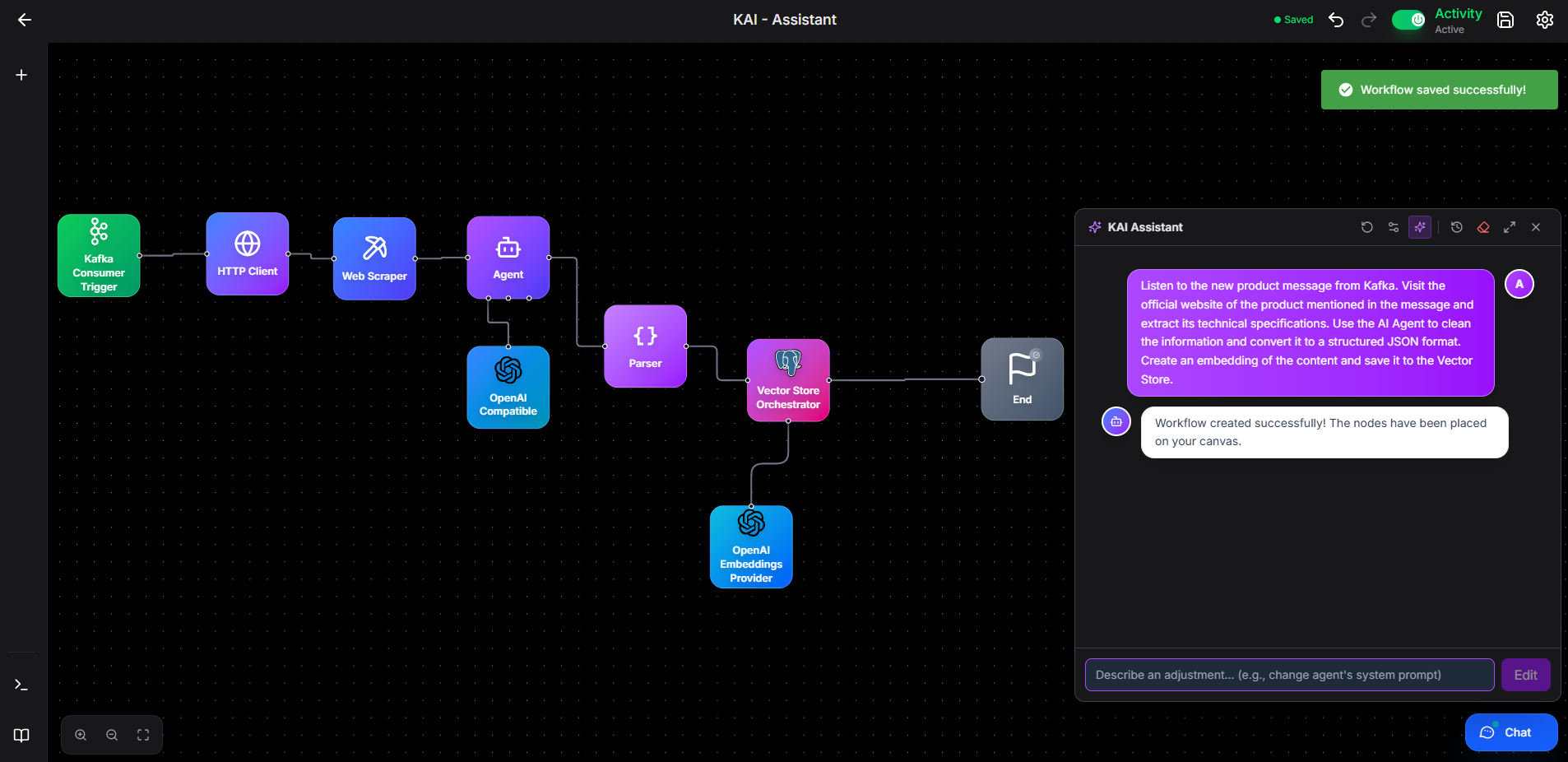
Editing an Existing Workflow
When a workflow is already open, your message is treated as an edit request. The assistant reads the current flow and modifies it.
Examples:
Add a memory node to the agentChange the chunk size to 500Add a condition that routes urgent messages to a separate path
While the assistant works, the panel shows Editing workflow....
Starting Over
To discard the current flow and generate a new one from scratch, enable Restart Assistant (Start from scratch) before sending your message. Without it, the assistant builds on what is already on the canvas.
Conversation History
Each workflow keeps its own assistant conversation, so the assistant remembers what you asked earlier in the same workflow.
- New Conversation — starts a fresh conversation for this workflow.
- Conversation History — lists your previous conversations. Select one to continue it.
- Clear conversation — removes the messages in the current conversation.
Notes
- A valid LLM credential is required. Without one, the assistant cannot generate workflows.
- Generated workflows are a starting point. Review credentials, connections, and node settings before running the flow — the assistant cannot fill in your API keys for you.
- Requests that describe a clear outcome produce better results than requests that list node names.